
The best drawing tablets with shortcut keys for PC make digital art, photo editing, and design workflows faster by placing frequently used commands within easy reach. This roundup compares compact pen tablets, wireless models, and display tablets with built-in screens.
These picks span different sizes, pressure levels, shortcut layouts, and budgets, so you can choose a tablet that fits your software, workspace, and preferred drawing style.
Best 10 Drawing Tablets with Shortcut Keys for PC Picks for 2026
Best Screen-Based Pick

- 11.6-inch fully laminated anti-glare display
- 8 shortcut keys and red dial
- 8192 pressure levels with tilt support
Best For: PC artists who want a compact pen display with hands-on controls
Best Wireless Option

- Bluetooth or USB-A connectivity
- 4 ExpressKeys and battery-free pen
- 8.50 x 5.31-inch active area
Best For: Students and creators who want wireless screenless drawing
Most Shortcut Controls
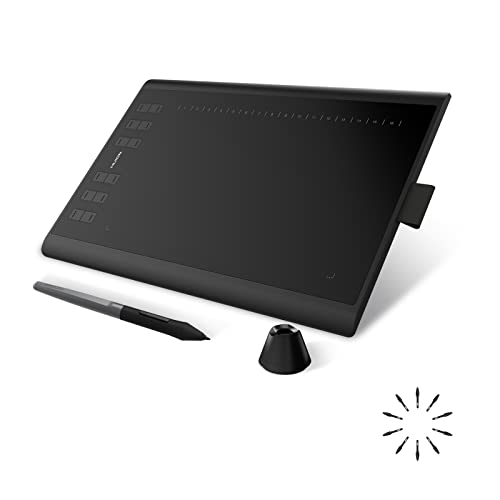
- 12 press keys plus 16 soft keys
- 10 x 6-inch active drawing area
- 8192 pressure levels and tilt support
Best For: Artists who want extensive customizable controls
Best Large Premium Display
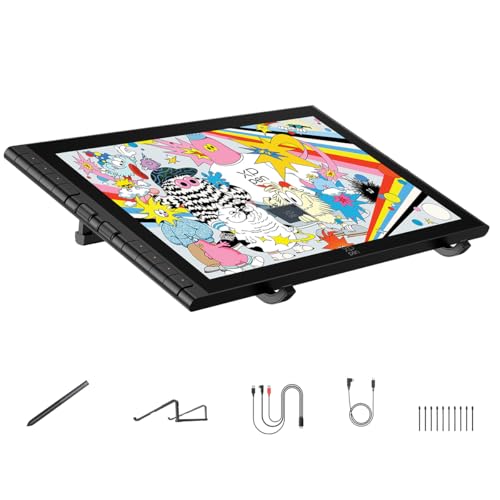
- 15.4-inch laminated FHD display
- 8 hotkeys and 2 scroll wheels
- 16K-pressure magnetic stylus
Best For: Professional creators who want a spacious, color-focused pen display
Best Screen-Based Starter
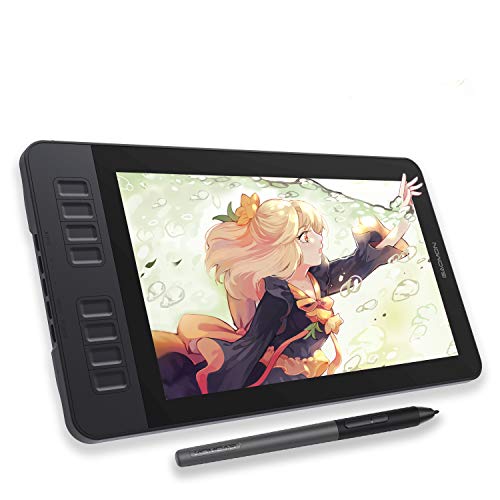
- 11.6-inch full HD drawing display
- Eight programmable shortcut keys
- Battery-free, tilt-enabled pen
Best For: Beginners who want direct-on-screen drawing with customizable controls
Best Large-Display Workflow
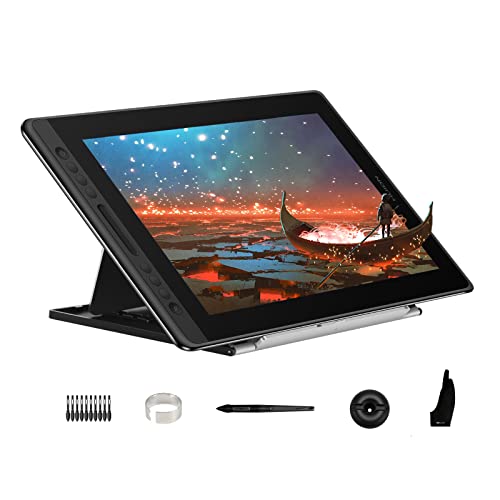
- 15.6-inch full-laminated display
- Six keys plus touch bar
- 120% sRGB color gamut
Best For: Artists seeking a spacious, color-focused pen display for PC
Best Wireless Shortcut Tablet

- Bluetooth 5.0 wireless connection
- Eight customizable shortcut keys
- Battery-free X3 stylus with tilt
Best For: Users who prioritize wireless portability and broad device compatibility
Best Portable Display

- 11.9-inch laminated AG display with 99% sRGB
- Eight shortcut keys plus dual X-Dial wheels
- 16K pressure, tilt-support X4 pen
Best For: Portable digital illustration and detailed creative work
Best Budget Shortcut Pad

- 10-by-6-inch active area
- 12 customizable shortcuts and Windows multimedia keys
- Battery-free 8,192-pressure pen
Best For: Affordable PC drawing, teaching, and remote work
Best Mid-Size Pen Display
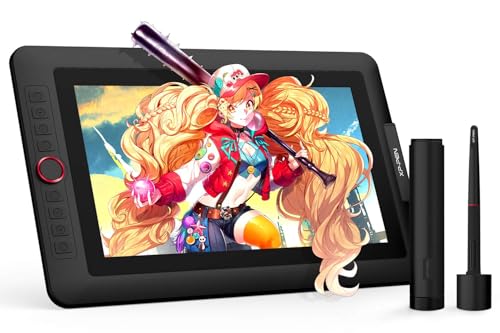
- 13.3-inch laminated Full HD display
- Red dial and eight customizable shortcut keys
- 16K battery-free pen with tilt support
Best For: Illustration, animation, editing, and 3D workflows
Best Screen-Based Pick – XP-Pen Artist 12 Pro
If you want drawing tablets with shortcut keys for PC and prefer drawing directly on the canvas, the XP-Pen Artist 12 Pro combines an 11.6-inch laminated display with eight customizable keys and a tactile red dial. It connects to a computer rather than working as a standalone tablet.
Best For: PC artists, illustrators, and remote teachers who want a compact pen display with physical workflow controls.
Pros:
- Fully laminated, anti-glare 1920×1080 display helps reduce parallax and reflections.
- Eight customizable shortcut keys plus a red dial support zooming and brush-size adjustments.
- Battery-free stylus offers 8192 pressure levels and up to 60° tilt support.
- Works with Windows, macOS, ChromeOS, and Linux, subject to the listed requirements.
Cons:
- Requires connection to a host computer or other compatible device.
- The 11.6-inch screen may feel compact for users who prefer a larger canvas.
The Artist 12 Pro is a strong choice when on-screen drawing and fast physical controls matter more than portability or standalone use.
Best Wireless Option – Wacom Intuos Medium
For shoppers seeking drawing tablets with shortcut keys for PC without a built-in screen, the Wacom Intuos Medium offers a larger 8.50 x 5.31-inch active area, four ExpressKeys, and Bluetooth or USB-A connectivity. You draw while viewing the work on your computer display.
Best For: Students, teachers, and creators who want a wireless, screenless tablet for drawing, editing, design, or document markup.
Pros:
- Bluetooth enables wireless use, while USB-A provides a direct connection.
- Battery-free Wacom pen is designed for pen-on-paper control.
- Four ExpressKeys provide convenient shortcut access.
- Compatible with Mac, Windows, and Chromebook systems and works with varied software.
Cons:
- Its 4096 pressure levels are lower than those listed for several competing models.
- Because it has no display, you must look at the connected computer screen while drawing.
The Intuos Medium is a practical, flexible pick if wireless convenience and established software compatibility are more important than a screen or a large shortcut-key array.
Most Shortcut Controls – HUION Inspiroy H1060P
If shortcut access is your priority, the HUION Inspiroy H1060P stands out among drawing tablets with shortcut keys for PC by combining 12 programmable press keys with 16 programmable soft keys. Its 10 x 6-inch active area and battery-free, tilt-supporting pen provide ample room for drawing without adding a display.
Best For: Artists and hobbyists who want extensive customizable controls for Photoshop, SAI, Illustrator, and similar software.
Pros:
- Offers 12 programmable press keys plus 16 programmable soft keys.
- Battery-free stylus provides 8192 pressure levels and ±60° tilt support.
- Supports Windows, macOS, Android, and Linux Ubuntu with the stated connection requirements.
- Symmetrical design can accommodate right- or left-handed use.
Cons:
- It is a screenless tablet, so drawing requires looking at the connected display.
- Linux use requires the Xorg display server; Wayland is not supported.
- Phone support has specific limitations, including no current iPhone or iPad compatibility.
The H1060P is especially compelling for keyboard-free workflows, giving power users far more programmable inputs than the other screenless option here.
Best Large Premium Display – XP-Pen Artist 16 3rd Gen
For a larger on-screen workspace, the XP-Pen Artist 16 3rd Gen is one of the most capable drawing tablets with shortcut keys for PC. It pairs a 15.4-inch fully laminated FHD display with eight hotkeys, two scroll wheels, a foldable stand, and a 16K-pressure magnetic stylus.
Best For: Professional illustrators, animators, and 3D creators who want a spacious display and quick physical controls.
Pros:
- 15.4-inch anti-glare etched-glass display offers near-zero parallax and broad color coverage.
- Eight customizable hotkeys and two scroll wheels help manage brushes, zoom, and layers.
- 16,384 pressure levels, low activation force, and minimal retraction support precise strokes.
- Includes a foldable stand and supports USB-C or the included 3-in-1 cable for compatible setups.
Cons:
- The larger display is less compact than the smaller pen displays and screenless tablets.
- It still requires connection to a compatible computer or device.
The Artist 16 3rd Gen is the premium choice for users who value a generous canvas, detailed color control, and shortcut access without repeatedly reaching for the keyboard.
Best Screen-Based Starter – GAOMON PD1161
The GAOMON PD1161 is a practical choice for anyone seeking drawing tablets with shortcut keys for PC and prefers to draw directly on the display. Its 11.6-inch full HD screen, eight programmable side keys, and battery-free stylus support digital art, image editing, design, note-taking, and diagrams. It must be connected to a Windows PC or Mac, with HDMI and USB connectivity available.
Best For: Beginners, students, and artists who want an affordable pen display with easy-to-customize controls.
Pros:
- Draw directly on a full HD 11.6-inch IPS screen with a pre-installed matte film.
- Eight programmable press keys plus two programmable pen buttons help streamline common actions.
- Battery-free pen offers 8,192 pressure levels and tilt support.
- Supports Windows 7 or later, macOS 10.12 or later, and popular creative software.
Cons:
- Not a standalone tablet; it requires a compatible computer to operate.
- Computer needs available HDMI and USB ports, or an appropriate converter.
- Some laptops may require the included power adapter if they cannot supply enough power.
Choose the PD1161 if direct-on-screen drawing and a straightforward shortcut layout matter more than portability. Its compact display and included accessories make it a well-rounded entry-level pen display for PC-based creative work.
Best Large-Display Workflow – HUION Kamvas Pro 16
The HUION Kamvas Pro 16 is designed for creators who want drawing tablets with shortcut keys for PC alongside a larger, color-focused display. Its 15.6-inch full-laminated screen, six express keys, touch bar, and included adjustable stand create a comfortable setup for drawing, painting, and design. It must be connected to a compatible computer.
Best For: Artists and designers who value a larger working area, vivid color coverage, and quick zoom or brush-size adjustments.
Pros:
- 15.6-inch full HD display features full lamination, anti-glare glass, and a lightly textured drawing surface.
- 120% sRGB color gamut and a 1000:1 contrast ratio support vibrant visuals and clearer shadow detail.
- Six programmable express keys, a touch bar, and two programmable pen buttons support efficient workflows.
- Included ST200 stand adjusts from 20 to 60 degrees for different working positions.
Cons:
- It is not standalone and requires a Windows, Mac, or supported Linux computer.
- The larger display and stand make it less compact than smaller pen displays.
- Its shortcut setup has six express keys, fewer than some eight-key alternatives.
The Kamvas Pro 16 is the stronger fit when screen size, color presentation, and ergonomic positioning are priorities. Its touch bar adds a useful extra control for frequent adjustments such as zooming and changing brush size.
Best Wireless Shortcut Tablet – XPPen Deco MW
The XPPen Deco MW is a flexible option for users comparing drawing tablets with shortcut keys for PC and wanting a cable-free setup. This compact, screenless tablet uses Bluetooth 5.0, includes eight customizable shortcut keys, and pairs with a battery-free X3 stylus. It works with Windows, Mac, Linux, Chrome OS, and compatible Android devices.
Best For: Students, teachers, and creators who want wireless portability and a compact 8-by-5-inch working area.
Pros:
- Bluetooth 5.0 enables wireless drawing and helps keep the workspace organized.
- Eight customizable shortcut keys can replace frequent keyboard commands, with tactile bumps for identification.
- X3 stylus provides 8,192 pressure levels, 60-degree tilt support, and a battery-free design.
- Broad compatibility includes Windows, macOS, Linux, Chrome OS, Android, and major creative applications.
Cons:
- The tablet has no built-in screen, so users draw while viewing the computer or connected device.
- The active area is 8 by 5 inches, smaller than the working surface of many larger tablets.
- Wireless use depends on Bluetooth compatibility and charging or power arrangements for the connected setup.
The Deco MW stands out when wireless freedom and shortcut access are more important than drawing directly on a display. Its broad operating-system support also makes it a versatile choice for home, classroom, and mobile creative workflows.
Best Portable Display – XP-Pen Artist 12 3rd
If you want drawing tablets with shortcut keys for PC that remain easy to carry, the XP-Pen Artist 12 3rd combines an 11.9-inch screen with eight customizable keys and dual X-Dial wheels. Its laminated, anti-glare display and precise pen make it well suited to detailed work away from a fixed desk.
Best For: Digital artists, students, illustrators, and creators who need a portable pen display with fast workflow controls.
Pros:
- Dual X-Dial wheels handle brush-size and canvas-zoom adjustments, while eight keys provide customizable shortcuts.
- Full-laminated AG glass reduces glare and helps minimize parallax during extended drawing sessions.
- The X4 pen offers 16,384 pressure levels, 60-degree tilt support, and a battery-free magnetic design.
- Factory-calibrated Full HD display covers 99% sRGB with stated ΔE<1.5 color accuracy.
Cons:
- The 11.9-inch workspace may feel compact for artists accustomed to larger displays.
- It requires a compatible computer or device and may need cable adapters depending on the setup.
Choose this model when portability, glare control, and physical shortcut access matter as much as drawing precision. Its included stand and broad operating-system support add flexibility for home, school, or mobile workflows.
Best Budget Shortcut Pad – XOPPOX VIN1060Plus
For shoppers seeking drawing tablets with shortcut keys for PC without a built-in display, the XOPPOX VIN1060Plus offers a large 10-by-6-inch active area, 12 customizable shortcut keys, and a battery-free stylus. It is designed for drawing, design, online teaching, and general computer input.
Best For: Beginners, students, teachers, remote workers, and artists who prefer an affordable screenless tablet with extensive controls.
Pros:
- Twelve customizable shortcut keys support software-specific workflows, with ten additional multimedia keys on Windows.
- The battery-free pen provides 8,192 pressure levels, 60-degree tilt support, and no charging requirement.
- The 10-by-6-inch active area gives ample room for drawing and annotation.
- Works with Windows, macOS, and Android, plus common creative and office applications.
Cons:
- It has no built-in screen, so users must look at the connected computer display.
- The multimedia keys are limited to Windows, and the tablet is not compatible with iPhone, iPad, or Chromebook.
- Mac users must grant several security permissions after driver installation.
This is a practical value choice if shortcut access and a generous drawing surface matter more than an integrated display. Its battery-free pen and included replacement nibs also keep routine maintenance simple.
Best Mid-Size Pen Display – XP-Pen Artist 13.3 Pro V2
The XP-Pen Artist 13.3 Pro V2 is a strong option for drawing tablets with shortcut keys for PC when you want a larger screen and dedicated workflow controls. Its 13.3-inch laminated display, red dial, and eight customizable keys support efficient drawing, editing, and 3D work.
Best For: Illustrators, animators, photo editors, educators, and creators who want a mid-size display tablet with tactile controls.
Pros:
- The red dial handles tasks such as zooming, brush-size adjustment, and canvas rotation, while eight keys are customizable.
- Its fully laminated Full HD display is designed to reduce parallax and offers a 178-degree viewing angle.
- The battery-free stylus provides 16,384 pressure levels, 60-degree tilt, and two customizable pen buttons.
- Supports Windows, macOS, ChromeOS, and Linux, with compatibility for Photoshop, Illustrator, SAI, and Blender 3D.
Cons:
- It must be connected to a computer or laptop; it is not a standalone drawing device.
- The included 3-in-1 connection may require desk space and cable management.
- Its 13.3-inch screen is less portable than smaller pen displays.
Consider this model if you want a comfortable middle ground between a compact tablet and a larger professional display. The dial, shortcut keys, tilt support, and wide software compatibility make it particularly useful for repetitive creative tasks.
How We Picked the Best Drawing Tablets with Shortcut Keys for PC
We focused on the features that matter most in everyday PC-based creative work: active-area size, pen sensitivity, shortcut controls, display quality, connectivity, compatibility, and overall practicality. The selection includes both screenless tablets that let you draw while looking at your monitor and pen displays that provide a more direct paper-like workflow.
We also considered whether each model uses a battery-free stylus, how easily its controls can be customized, and whether its design suits beginners, students, illustrators, editors, or experienced professionals.
Quick Comparison
- Best for a compact pen display: 11.6-inch and 11.9-inch screen tablets offer a balance of portability and drawing space.
- Best for larger canvases: 15.4-inch and 15.6-inch displays provide more room for detailed illustration and editing.
- Best screenless option: Medium and large pen tablets can offer strong value without adding another display to your desk.
- Best for wireless flexibility: Bluetooth-enabled models reduce cable clutter and make it easier to work away from a fixed setup.
Key Buying Factors for Drawing Tablets with Shortcut Keys for PC
Tablet Type and Active Area
A screenless tablet is usually less expensive, lighter, and easier to position beside a monitor. A display tablet can feel more intuitive because the pen appears directly beneath the nib, but it needs desk space and typically requires more cables. Choose an active area large enough for comfortable strokes without overwhelming your workspace.
Shortcut Keys and Customization
Shortcut buttons are useful for undo, zoom, brush size, eraser switching, and other repetitive commands. More keys are not automatically better; a smaller, well-placed control layout may be faster to use. Scroll wheels, touch bars, and dual dials can make zooming or changing brush settings especially convenient.
Pen Performance and Display Quality
Look for a battery-free stylus, high pressure sensitivity, tilt support when available, and low initial activation force. On-screen models should also be judged by resolution, color coverage, viewing angles, anti-glare treatment, and whether the display is fully laminated to reduce cursor offset.
Compatibility and Connectivity
Confirm support for your Windows version and preferred software before buying. Check the included cables, USB requirements, driver availability, and whether Bluetooth is supported if wireless use matters. A tablet with reliable drivers is often more valuable than one with a longer feature list.
Who Should Buy Which Drawing Tablets with Shortcut Keys for PC?
Beginners and students should consider a reasonably priced screenless model with a medium or large active area and straightforward shortcut controls. It offers strong value while leaving room to develop drawing skills.
Illustrators and digital artists may prefer a laminated pen display with tilt support, strong color coverage, and a larger screen. These features help with line control, detailed work, and a more natural hand-eye relationship.
Photo editors and productivity-focused users should prioritize customizable keys, scroll controls, dependable drivers, and comfortable long-session ergonomics. Traveling or flexible-work users may benefit from a compact tablet or Bluetooth connectivity, provided the active area remains large enough for accurate work.