
The right drawing tablet can make photo editing faster, more precise, and easier on your hand than a mouse. Whether you retouch portraits, mask landscapes, or manage detailed layers, the best choice depends on your workspace, software, and preferred drawing feel.
We compare 10 strong options across screen tablets and traditional pen tablets, focusing on pressure sensitivity, active area, shortcut controls, display quality, connectivity, and overall value.
Best 10 Drawing Tablet for Photo Editing Picks for 2026
Best Color-Accurate Display

- 13.3-inch laminated display with 99% sRGB
- Factory calibration report and ΔE<1.5 accuracy
- Dual dials, shortcut keys, and adjustable stand
Best For: On-screen photo editing and color-conscious creative work
Best Professional Screenless Option

- Pro Pen 3 with 8,192 pressure levels and tilt
- Ten ExpressKeys plus two mechanical dials
- Bluetooth or USB connectivity for Mac and PC
Best For: Professional monitor-based photo editing workflows
Best Portable Display Tablet

- 11.9-inch Full HD display with 99% sRGB
- Factory-calibrated ΔE<1.5 color accuracy
- Dual X-Dials, eight keys, and 1.58-pound design
Best For: Mobile photo retouching and compact on-screen editing
Best Budget-Friendly Control Pad

- 9-by-5-inch class tablet with 8.7-by-5.4-inch active area
- Scroll wheel, eight keys, and grouped shortcuts
- Battery-free 8,192-level stylus with 60° tilt
Best For: Beginner and budget-conscious monitor-based editing
Premium Screen Pick

- 14-inch laminated anti-glare display
- 99% sRGB coverage with ΔE < 2.2
- 16,384-level battery-free stylus
Best For: On-screen photo editing and digital art
Shortcut-Heavy Value

- 10-by-6.25-inch working area
- 12 press keys plus 16 soft keys
- 8,192-level battery-free tilt stylus
Best For: Shortcut-driven editing on a computer
Compact Starter Choice

- Compact 6-by-3.7-inch active area
- Battery-free EMR pen with 4K pressure levels
- Includes software access and online training
Best For: Beginners and compact photo-editing setups
Best Color-Focused Pen Display
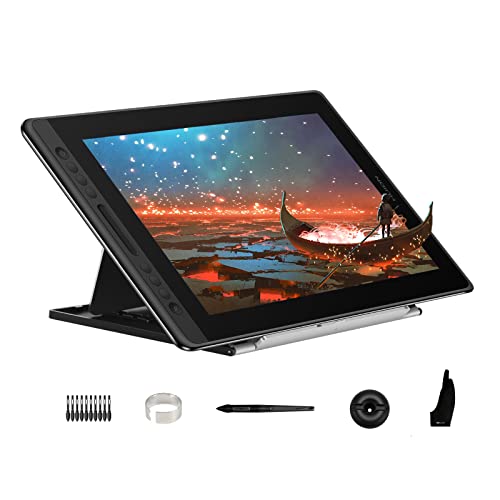
- 15.6-inch full-laminated anti-glare display
- 120% sRGB and 1000:1 contrast ratio
- Six keys, touch bar, and adjustable stand
Best For: Photo editors who want a large, vivid on-screen workspace
Best Budget Screenless Tablet

- 10 x 6.25-inch drawing area
- 16,384 pressure levels with tilt support
- Eight customizable keys and broad compatibility
Best For: Beginners seeking a portable, screenless editing tablet
Best Compact Color-Accurate Display
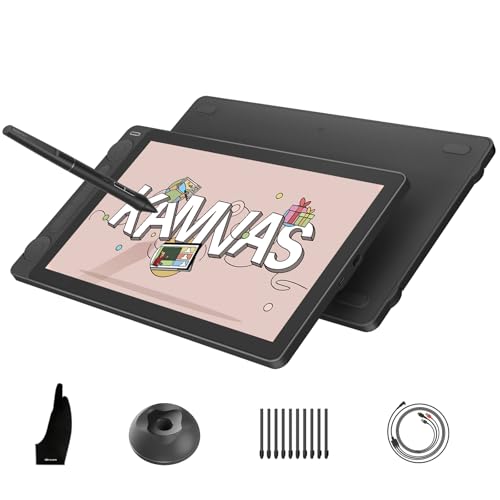
- 99% sRGB with factory ΔE<1.5 calibration
- 13.3-inch Canvas Glass 2.0 display
- Two dials, five keys, and 16K pen sensitivity
Best For: Editors who want portable on-screen work with color control
Best Color-Accurate Display – HUION Kamvas 13 (Gen 3)
The HUION Kamvas 13 (Gen 3) is a strong drawing tablet for photo editing when you want to work directly on a color-focused screen. Its factory-calibrated, fully laminated 13.3-inch display combines 99% sRGB coverage with Avg. ΔE<1.5 accuracy, while the dial controls and shortcut keys help speed up editing tasks.
Best For: Photo editors and digital artists who prefer an on-screen workflow with accurate color.
Pros:
- 13.3-inch fully laminated display with reduced glare from Canvas Glass 2.0
- 99% sRGB coverage and factory calibration report support consistent color work
- Dual dial controls and five programmable shortcut keys streamline editing
- Includes an adjustable stand and supports Windows, macOS, Android, and Linux
Cons:
- Must be connected to a computer, laptop, or compatible Android device to work
- Full-featured USB-C cable is sold separately
Choose this model if seeing your edits directly beneath the pen matters more than having a compact, screenless tablet. Its display and color specifications make it particularly suitable for retouching and visual design.
Best Professional Screenless Option – Wacom Intuos Pro Medium
The Wacom Intuos Pro Medium is a professional drawing tablet for photo editing that keeps your monitor unobstructed while providing extensive shortcut control. Its Pro Pen 3 offers 8,192 pressure levels and tilt support, and Bluetooth connectivity allows a cleaner, more flexible desk setup.
Best For: Experienced photo, video, animation, and 3D professionals who want customizable controls and wireless use.
Pros:
- Pro Pen 3 includes 8,192 pressure levels, tilt support, and lag-free tracking
- Ten customizable ExpressKeys and two mechanical dials keep common commands close at hand
- Bluetooth supports wireless use with multiple computers
- Durable magnesium construction and a compact medium footprint suit desk or mobile work
Cons:
- Screenless design requires looking at a connected Mac or PC while editing
- Smaller active area than the tablet’s overall dimensions may take adjustment
This is the more streamlined choice for editors who already work comfortably with a separate monitor. The customizable pen and controls make it well suited to repetitive Photoshop-style workflows, though it lacks an integrated display.
Best Portable Display Tablet – XP-Pen Artist 12 3rd
The XP-Pen Artist 12 3rd is a portable drawing tablet for photo editing with an 11.9-inch Full HD screen, factory-calibrated 99% sRGB color, and a paper-like etched-glass surface. Its dual X-Dial wheels, customizable keys, and lightweight design make it practical for editing away from a permanent workstation.
Best For: Students, freelancers, and mobile creators who want an accurate on-screen tablet that is easy to carry.
Pros:
- 11.9-inch fully laminated display offers 1920×1080 resolution and 99% sRGB coverage
- Factory calibration and Avg. ΔE<1.5 accuracy support photo-retouching work
- Dual X-Dial wheels and eight customizable keys provide quick editing controls
- Weighs 1.58 pounds and includes a foldable stand
Cons:
- Requires connection to a compatible computer or device; it is not standalone
- The smaller screen may feel limiting compared with larger pen displays
For creators who move between locations, this model balances a color-conscious display with portability. It is a compelling fit for retouching, though the 11.9-inch workspace favors mobility over maximum screen area.
Best Budget-Friendly Control Pad – HUION Inspiroy 2 Medium
The HUION Inspiroy 2 Medium is a practical screenless drawing tablet for photo editing, offering a 9-by-5-inch class workspace, a scroll wheel, and programmable controls without requiring a built-in display. Its battery-free stylus supports 8,192 pressure levels and 60-degree tilt, while Android compatibility adds flexibility.
Best For: Beginners, students, and editors who want customizable shortcuts for a separate computer or compatible mobile device.
Pros:
- Scroll wheel, eight press keys, and three groups of programmable keys support efficient workflows
- Battery-free stylus provides 8,192 pressure levels and 60-degree tilt support
- 8.7-by-5.4-inch active area offers useful room for editing gestures
- Works with Windows, macOS, Linux, ChromeOS, and Android devices
Cons:
- Screenless design requires viewing edits on a connected device
- Must be connected by cable and has no internal power source
This model is a sensible starting point for photo editing when shortcut access matters more than an integrated screen. It delivers a generous active area and broad compatibility, but users wanting direct pen-on-image interaction should consider a pen display instead.
Premium Screen Pick – XPPen Artist Pro 14 Gen2
If you want a drawing tablet for photo editing with an integrated display, the XPPen Artist Pro 14 Gen2 offers a detailed, color-focused workspace. Its 14-inch fully laminated, anti-glare screen is designed to reduce parallax, while the wide color coverage suits photo and design work. Keep in mind that it must connect to a computer or laptop; it is not standalone.
Best For: Photo editors and digital artists who prefer drawing directly on a color-accurate screen.
Pros:
- 14-inch full-laminated anti-glare display helps with precise cursor positioning.
- 99% sRGB coverage and ΔE < 2.2 support color-conscious editing.
- Battery-free X3 Pro stylus offers 16,384 pressure levels and 60° tilt support.
- Includes a foldable stand, wireless shortcut remote, and ergonomic wrist rest.
Cons:
- Requires a connected computer or laptop and is not a standalone tablet.
- The included 3-in-1 cable is packaged separately in a small white box.
This is the most display-oriented option in the group, with useful color and comfort features for longer editing sessions. Choose it if you want an on-screen workflow and have the required computer setup.
Shortcut-Heavy Value – HUION Inspiroy H1060P
For shoppers seeking a practical drawing tablet for photo editing without paying for a built-in display, the HUION Inspiroy H1060P provides a roomy 10-by-6.25-inch working area and extensive shortcut controls. It connects to a computer or compatible Android device and uses a battery-free, tilt-supporting stylus.
Best For: Photo editors who want many customizable shortcuts and a larger non-display workspace.
Pros:
- 10-by-6.25-inch active working area offers comfortable space for editing.
- Includes 12 programmable press keys and 16 programmable soft keys.
- Battery-free stylus provides 8,192 pressure levels and ±60° tilt support.
- Supports Windows, macOS, Android, and Linux with listed compatibility limitations.
Cons:
- It is a pen tablet without an integrated drawing display.
- Mac computers require a USB adapter; iPhone and iPad are not currently supported.
- Ubuntu use requires the Xorg display server rather than Wayland.
The H1060P is a strong control-focused choice for Photoshop-style workflows, especially if you rely on keyboard-like shortcuts. Its lack of an on-screen display means you will edit while looking at your monitor.
Compact Starter Choice – Wacom Intuos Small
The Wacom Intuos Small is a compact drawing tablet for photo editing, design, and document markup. Its battery-free EMR pen is built for a pen-on-paper feel, and four ExpressKeys provide quick access to commonly used commands. It is a wired, screenless tablet that works with compatible Windows, Mac, and Chromebook setups.
Best For: Beginners, students, and photo editors who want a compact tablet from an established brand.
Pros:
- Battery-free pen uses Wacom EMR technology for precise, natural-feeling control.
- Four ExpressKeys provide convenient shortcut access.
- Works with Windows, Mac, and Chromebook, with plug-and-play Chromebook support.
- Registration includes access to creative software and Wacom online training.
Cons:
- The small 6-by-3.7-inch active area offers less workspace than the HUION.
- It has no built-in display, so edits appear on the connected computer screen.
- Uses USB-A connectivity.
This is a straightforward, space-saving option for photo editing and general digital creativity. It makes the most sense when portability, simple controls, and included learning resources matter more than a large work area or display.
Best Color-Focused Pen Display – HUION Kamvas Pro 16
If you want a drawing tablet for photo editing with a large working area and vivid color, the HUION Kamvas Pro 16 is a strong fit. Its 15.6-inch fully laminated display, 120% sRGB gamut, and 1920×1080 resolution are well suited to editing images in Photoshop, Lightroom, and similar software. Keep in mind that it must be connected to a computer or laptop.
Best For: Photo editors who prioritize a large, color-rich screen and customizable workflow controls.
Pros:
- 120% sRGB coverage and a 1000:1 contrast ratio support vibrant color and visible shadow detail.
- Fully laminated anti-glare glass offers a clear view with a lightly textured drawing surface.
- Six shortcut keys, a touch bar, and the included adjustable stand support an efficient, comfortable workflow.
- Battery-free pen provides 8192 pressure levels, tilt recognition, and programmable side buttons.
Cons:
- It is a pen display rather than a standalone tablet, so it requires a connected computer or laptop.
- The 15.6-inch display and stand make it less portable than a screenless tablet.
The Kamvas Pro 16 is a practical choice when accurate-looking, high-saturation visuals and direct on-screen editing matter more than compact portability.
Best Budget Screenless Tablet – XPPen Deco 01 V3
The XPPen Deco 01 V3 is a practical drawing tablet for photo editing if you already work from a laptop, desktop, or compatible Android device. Its 10 x 6.25-inch drawing area, eight shortcut keys, and battery-free 16K stylus provide plenty of control for retouching and other editing tasks, without adding a built-in display.
Best For: Beginners and budget-conscious editors who want a portable screenless tablet with customizable controls.
Pros:
- Large 10 x 6.25-inch active area gives room for detailed editing.
- 16,384 pressure levels and up to 60 degrees of tilt support smooth strokes and shading.
- Eight customizable keys work for both right- and left-handed users.
- Supports Windows, macOS, Android, ChromeOS, Linux, and software such as Photoshop and Illustrator.
Cons:
- Because it has no built-in screen, you must look at a connected device while editing.
- Android support requires a compatible device and the recommended XPPen Tools application.
With its broad compatibility, lightweight 8 mm profile, and generous shortcut selection, the Deco 01 V3 is an approachable option for learning tablet-based photo editing.
Best Compact Color-Accurate Display – HUION Kamvas 13 Gen 3
For a drawing tablet for photo editing that balances portability with color control, the HUION Kamvas 13 Gen 3 is worth considering. Its 13.3-inch fully laminated Canvas Glass 2.0 display covers 99% sRGB and 90% Adobe RGB, while factory calibration to ΔE<1.5 is designed to provide consistent color presentation. It needs a connected computer or compatible Android device.
Best For: Editors and creators who need a portable pen display with calibrated color and efficient dial-based controls.
Pros:
- Factory-calibrated color with 99% sRGB coverage and stated ΔE<1.5 accuracy.
- Canvas Glass 2.0 reduces glare, sparkle, and image noise while adding a paper-textured feel.
- Two dial controllers and five silent press keys provide quick access to editing adjustments.
- PenTech 4.0 offers 16,384 pressure levels, 2g initial activation force, tilt auto-alignment, and three side buttons.
Cons:
- The 13.3-inch screen is smaller than the Kamvas Pro 16’s 15.6-inch display.
- It is not standalone and requires a computer, laptop, or compatible Android connection.
The Kamvas 13 Gen 3 stands out for editors who want a travel-friendly pen display while still getting calibrated color, a textured surface, and physical controls for repeated adjustments.
How We Picked the Best Drawing Tablet for Photo Editing
We evaluated these tablets for the tasks photographers perform most often: masking, dodging and burning, healing, cloning, selections, brush-based adjustments, and navigating complex editing sessions. Our comparison considers pen pressure response, surface size, shortcut controls, display visibility, screen quality where applicable, compatibility with popular photo-editing software, and ease of setup.
Screen tablets can feel more direct because you draw over the image, while non-display tablets are usually lighter, less expensive, and more comfortable for users who prefer looking at a monitor. The best fit is the one that matches your editing habits rather than simply offering the highest specification.
Quick Comparison
| Tablet type | Best suited to | Main advantage | Potential limitation |
|---|---|---|---|
| Screen tablet | Direct retouching and visual work | Draw directly on the image | Needs desk space and often extra cables |
| Medium pen tablet | Frequent editing and creative work | Good control-to-size balance | Requires hand-eye adjustment |
| Small pen tablet | Travel, compact desks, and beginners | Portable and affordable | Less room for broad strokes |
| Large pen tablet | Long sessions and detailed work | More expansive drawing area | Uses more workspace |
Key Buying Factors for a Drawing Tablet for Photo Editing
Active Area and Ergonomics
A medium active area is a practical starting point for most photographers. Smaller tablets save space but may feel cramped for sweeping corrections, while larger models can reduce cramped wrist movement if your desk can accommodate them.
Pressure Sensitivity and Pen Performance
Pressure sensitivity is useful for controlling brush opacity and size, but driver stability and consistent pen tracking matter just as much as the headline pressure rating. A battery-free stylus is convenient for long editing sessions.
Display, Color, and Surface Finish
With a screen tablet, prioritize viewing angles, brightness, color coverage, parallax, and an anti-glare surface. A display tablet should be calibrated alongside your main monitor if color-critical work is part of your workflow.
Shortcut Controls and Software Support
Express keys, dials, touch bars, or scroll wheels can speed up zooming, brush resizing, undoing, and rotating. Check Windows and macOS compatibility, driver quality, and whether the tablet works reliably with your preferred editor.
Connectivity and Workspace
Confirm the required USB, HDMI, USB-C, or power connections before buying. Screen models commonly need more cables than standard pen tablets, so cable length and desk placement can affect everyday convenience.
Who Should Buy Which Drawing Tablet for Photo Editing?
Choose a screen tablet if you want an intuitive, direct drawing experience and regularly perform detailed local adjustments. A compact display is convenient for smaller desks, while a larger model is better for extended sessions.
Choose a medium pen tablet if you already work from a calibrated monitor and want strong precision without adding another display. This is often the most balanced option for serious photo editing.
Choose a small or entry-level tablet if you are learning retouching, have limited space, or want a portable tool for occasional edits. Prioritize reliable drivers and comfortable controls over maximum specifications.